It’s 2026, and Zenless Zone Zero has evolved into a sprawling urban fantasy that still occasionally decides to take an unscheduled nap right in the middle of a Hollow raid. I’ve spent more nights than I care to admit staring at a frozen Billy Kid grin while my PC hummed a death rattle. Crashes, freezes, sudden CTDs—these gremlins don’t simply vanish because HoYoverse pushed a few updates. They cling on like glitter after a craft project, forcing you to become a part-time IT exorcist. If your screen has turned into a slideshow of despair, grab a coffee (or something stronger) and follow me through the digital trenches. I’ve distilled every fix that worked for me into a battle plan, seasoned with metaphors only a sleep-deprived Proxy would appreciate.
🖥️ PC Fixes: When Your Rig Acts Like a Grumpy Vending Machine
The very first move is the techiest of all: the digital equivalent of giving an uncooperative vending machine a firm kick. Turn everything off and on again. I know, I know—it sounds like advice from a call center script, but trust me, it’s the holy water of troubleshooting. Force-close Zenless Zone Zero through Task Manager if it’s stuck in a death grip, exit every launcher lurking in your system tray, and restart the whole machine. This cold reboot scrubs the RAM clean, sort of like throwing a bucket of ice water over a hungover driver—jarring, but often exactly what’s needed.
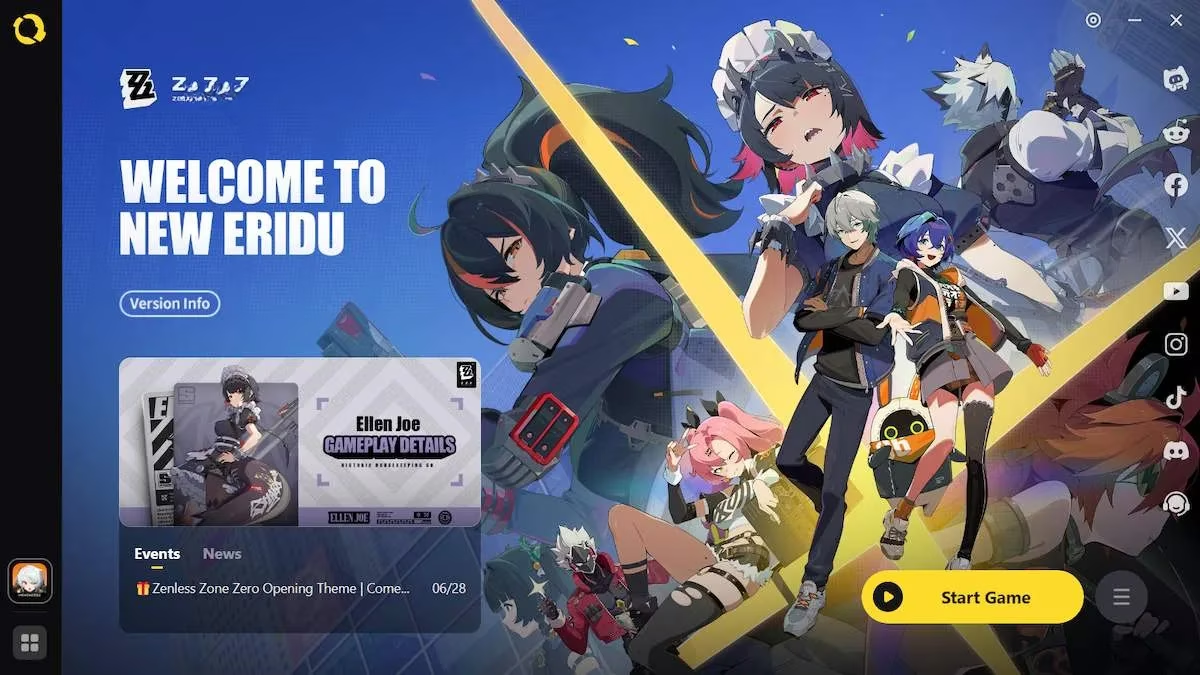
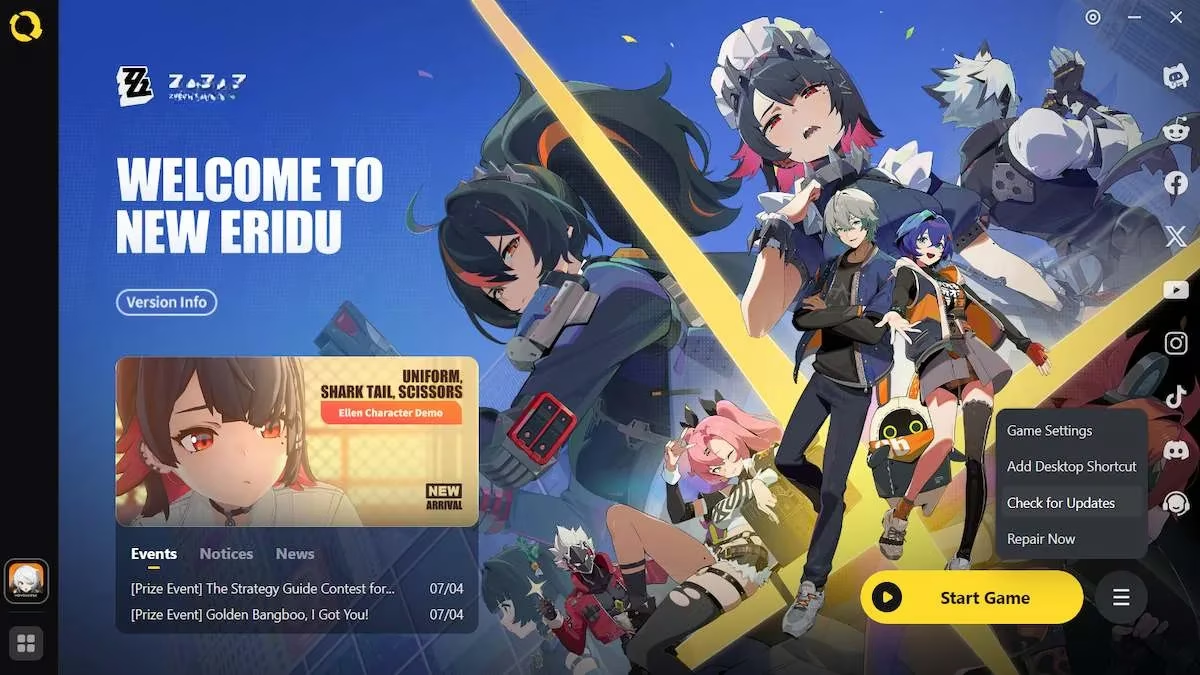
If the crash came right back like a boomerang, we need to get surgical. My next fix was a real game-changer: launching the game directly with a secret handshake. Head to the HoYoPlay launcher, click the three-line menu (bottom right), and open the game directory. Find ZenlessZoneZero.exe, right-click its Properties, and copy the full location path. Then create a new shortcut on your desktop, paste that path, and add \zenless-zone-zero.exe at the end. For Windows 11 users, you want \zenless-zone-zero.exe -force-d3d12. Think of this like sneaking a VIP pass to the front of a nightclub—you bypass the launcher’s bouncer and go straight to the party. After that, dive into your PC’s Graphics Settings, browse to add that same executable, and under Options pick your high-performance GPU. Now the game knows exactly whose horsepower to borrow.
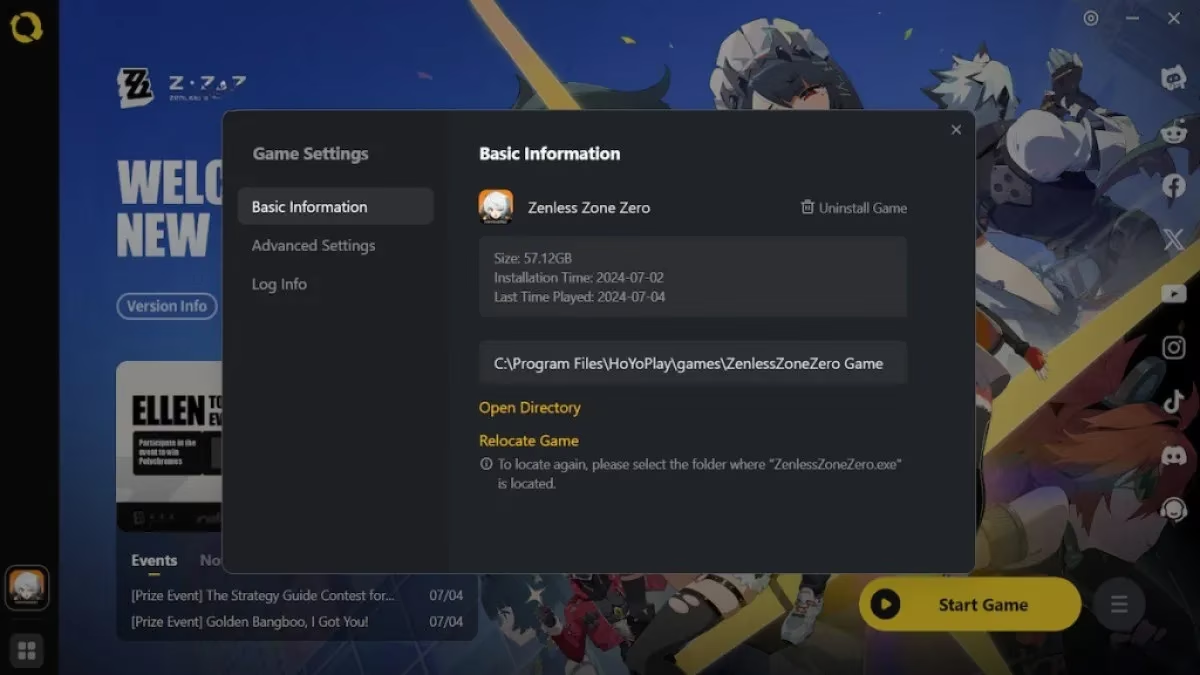
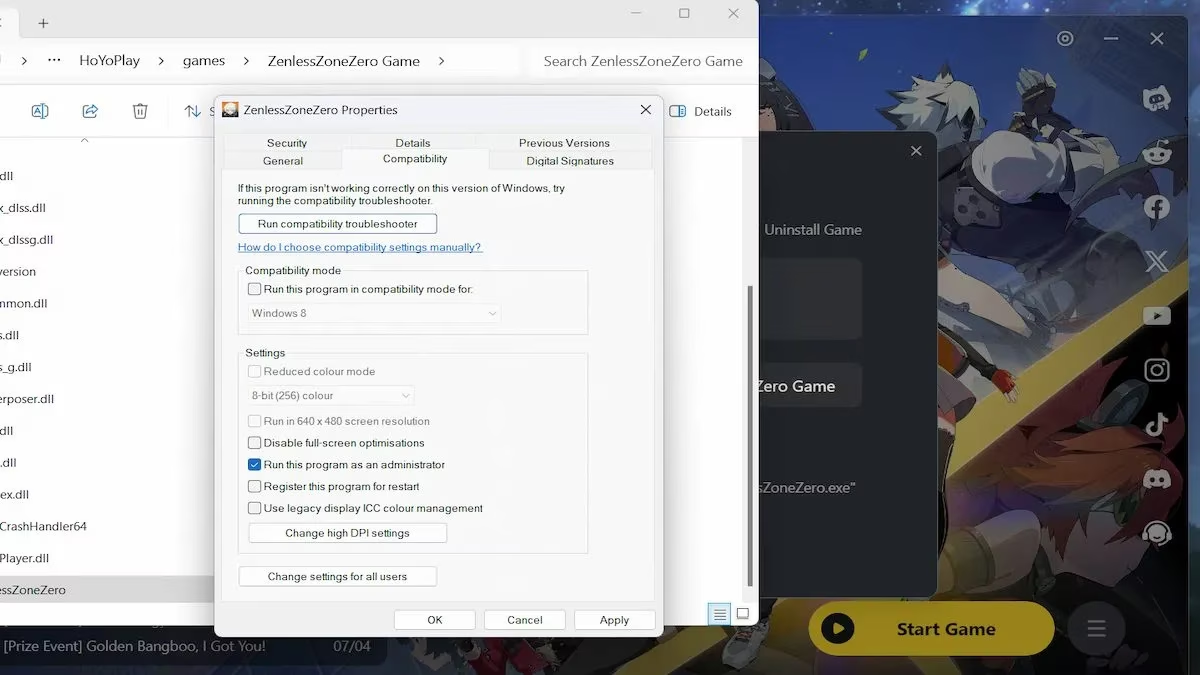
But sometimes the game still throws a tantrum, demanding royal treatment. Run it as Administrator. Right-click that same ZenlessZoneZero.exe, Properties → Compatibility → check “Run this program as an administrator.” While you’re there, consider disabling fullscreen optimizations, and for the truly desperate, try compatibility mode for Windows 7 or 8. I felt like I was giving my PC permission to handle a diva—and honestly, after a few tries, it worked. Launch the game from the installation folder, not from the launcher, and watch it behave.
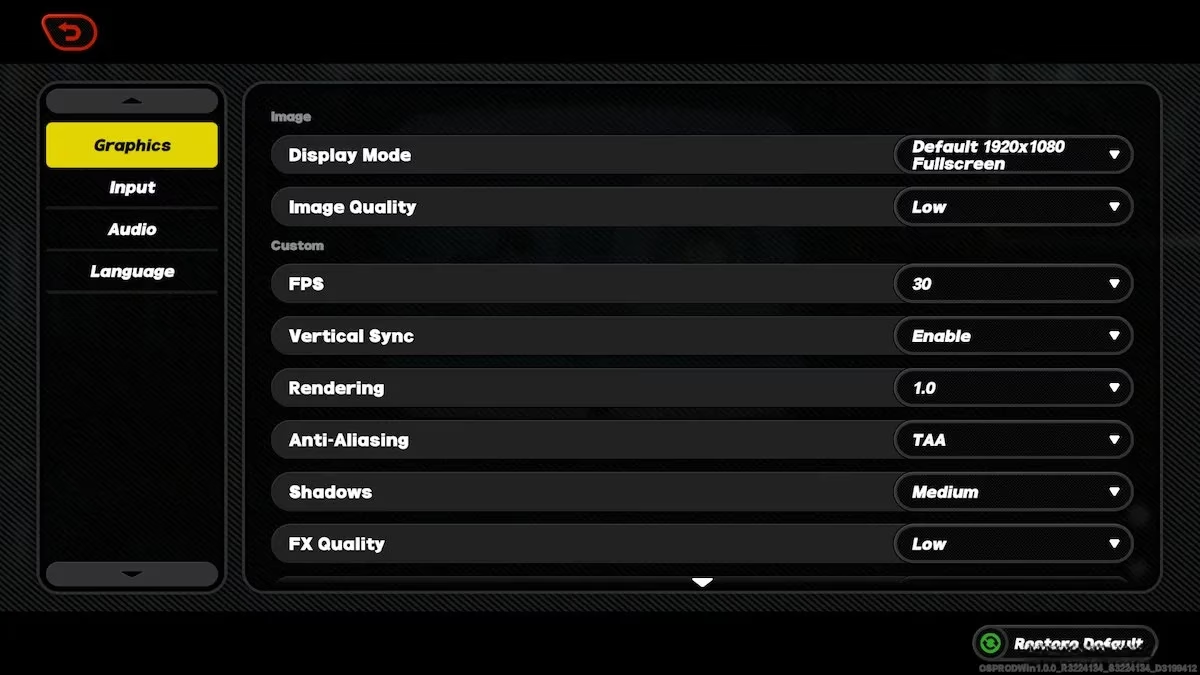
If ZZZ still collapses like a flan in a cupboard, it’s time to dial down the eye candy. In the game’s settings, reduce image quality to Low, turn down texture quality, and disable anti-aliasing. Your machine might be underpowered, chugging along like a rusty bicycle trying to keep up with a sports car. Lowering the graphics is like switching from riding a bucking bronco to a gentle rocking horse—less thrilling, but you’ll stay on much longer.
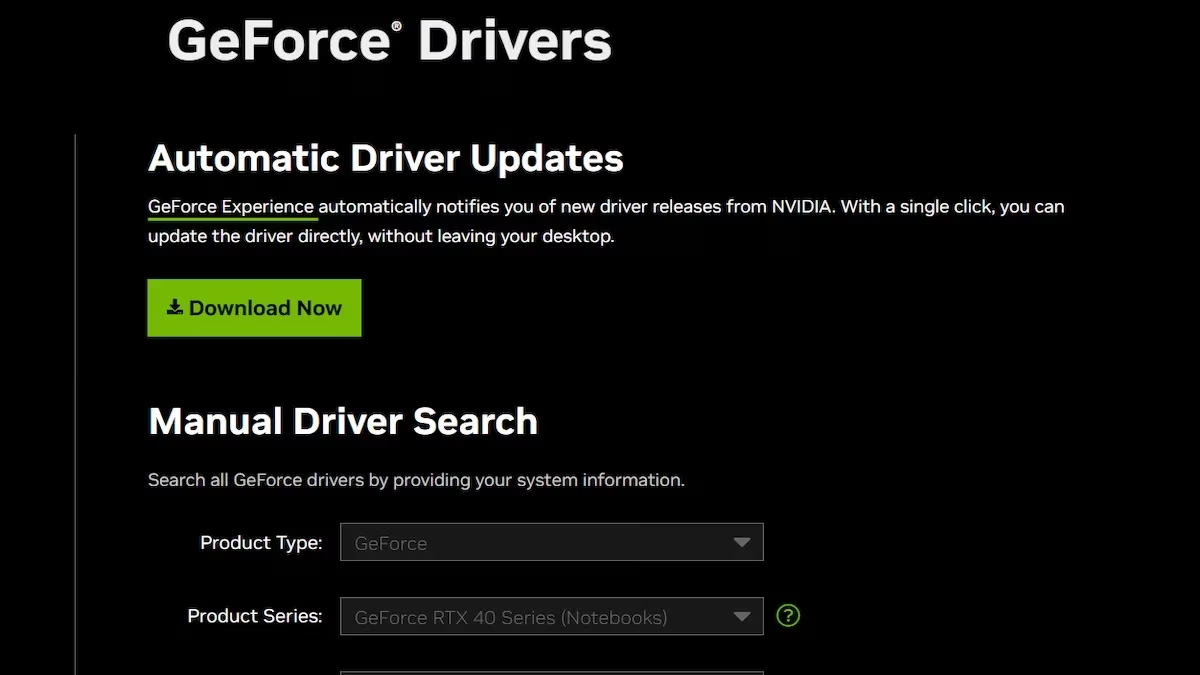
Now, here’s a maneuver I compare to fitting an old horse with fresh horseshoes: update your graphics card driver. Whether you’re team NVIDIA or AMD, head to the official website, download the latest driver, and install it. My poor RTX 3060 once ran on a driver so outdated it could’ve been written on papyrus. After the update, the game stopped stuttering like a nervous comedian. While you’re at it, check for any pending Windows updates—an aging OS can be as temperamental as a cat denied its tuna.
Another culprit? A mismatched game version. In HoYoPlay, click the menu and hit “Check for Updates.” I once spent an evening troubleshooting a crash only to realize I was two patches behind—like trying to play a vinyl on a CD player. If all else fails, use the “Repair Now” option or, if you’re on Epic Games, verify the game files. Still stuck? Close your browser, unplug unnecessary USB gizmos, and make sure your firewall isn’t treating ZZZ like a suspicious stranger at the door. As a last resort, uninstall and reinstall. It’s the tech equivalent of moving out and starting fresh in a new apartment.
A quick, somber note for my Intel Arc comrades: even in 2026, those GPUs still wrestle with this game like an octopus in a net. If you’re on Intel graphics, I feel your pain—report the bug to HoYoverse and hope for a miracle patch.
🎮 PlayStation 5 Fixes: Console Chaos Tamed
On PS5, the solutions are mercifully shorter, like a light novel instead of an encyclopedia. Reboot your console first. Unplug it, wait 30 seconds, plug it back in—this clears the cache and often banishes the freeze gremlin. I’d compare this to waking a sleepwalker with a gentle nudge; surprisingly effective. Update the game and system software, because even consoles need a fresh coat of paint. Also, check your storage: Zenless Zone Zero still demands a chunky 55GB, and a stuffed SSD can cause more drama than a reality TV finale.

Disable Rest Mode (Settings → System → Power Saving → Set Time Until PS5 Enters Rest Mode → “Don’t Put in Rest Mode”). Rest Mode sometimes hugs the game a bit too tightly and causes crashes when waking. If your console sounds like a jet engine, it might be overheating—raise it off its shelf, blast out the dust, and consider an external fan. A well-ventilated PS5 is a happy PS5. Still crashing? Reinstall. It’s the nuclear option, but it works.
📱 Mobile Fixes: Taming the Pocket-Sized Proxy Crisis
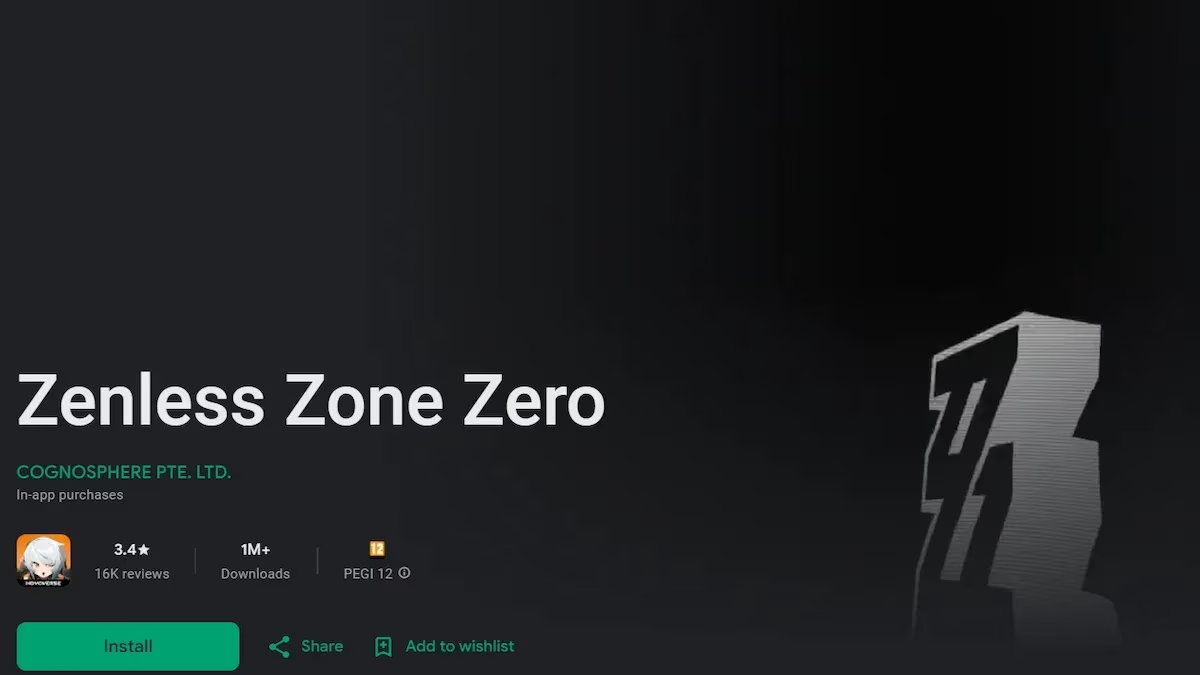
Mobile players face a unique beast: incompatibility. Head to the Google Play Store or Apple App Store and stare into the cold judgment of the “Your device isn’t compatible” message. This often means your phone’s hardware just can’t shoulder ZZZ’s demands anymore, like asking a moped to haul a grand piano. If you’re technically compatible but still crashing, try the classics: update the game, close all background apps, and check for system updates. Overheating? Slap on an external smartphone cooler—I’ve used one that stuck to my phone like a tiny air conditioner, and it genuinely helped.
Reinstall as a final incantation. And if all these steps feel like you’re navigating a maze blindfolded, remember: crashing issues are usually not you; they’re the game wearing a mischievous grin. Report every bug to HoYoverse—they can’t fix what they don’t know is broken.
At the end of this digital obstacle course, at least one of these fixes should have your New Eridu adventures back to buttery smoothness. If not, maybe your PC is just allergic to Billy’s impeccable style. Either way, I hope you’re crashing less and Proxy-ing more. Now if you’ll excuse me, I have a shortcut on my desktop that’s been working flawlessly for months, and a Belle that needs her daily dose of Hollow exploration.